A custom Grade/Progress Report is required in order to e-mail report cards. Please contact SDS Support to have the custom report created for you. http://sc.schooloffice.com/Supportconnect/
Once the custom Grade/Progress Report is in place, here are the things you need to have set up:
The student must have an email address entered in the Master_E-mail field in Demographics. This is entered in Data Entry & Changes |Student Information |Entry Options=Demographics All Fields. The report card can be customized to e-mail to as many as 9 email address fields from Demographics. An example would be a second guardian e-mail field.
The person sending the reports must have an email address in the E-Mail field of the Teachers table. This is entered in Data Entry & Changes |Master File & Code File Entry |Application=General Information |Entry Options=Teachers.
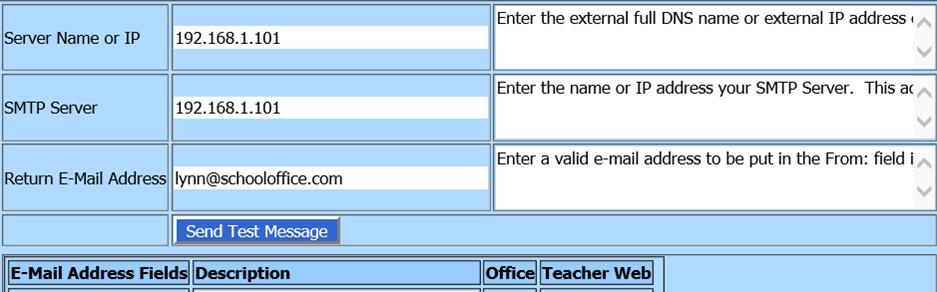
The Email Settings in Administrative Utilities |SDS Web Office Settings must be correct. The return email address entered here will auto-fill into the From line of the email you create.
The steps to e-mail the report cards are as follows: